VS Code SFTP Remote Development Setup
Step 1 — Install the SFTP Extension
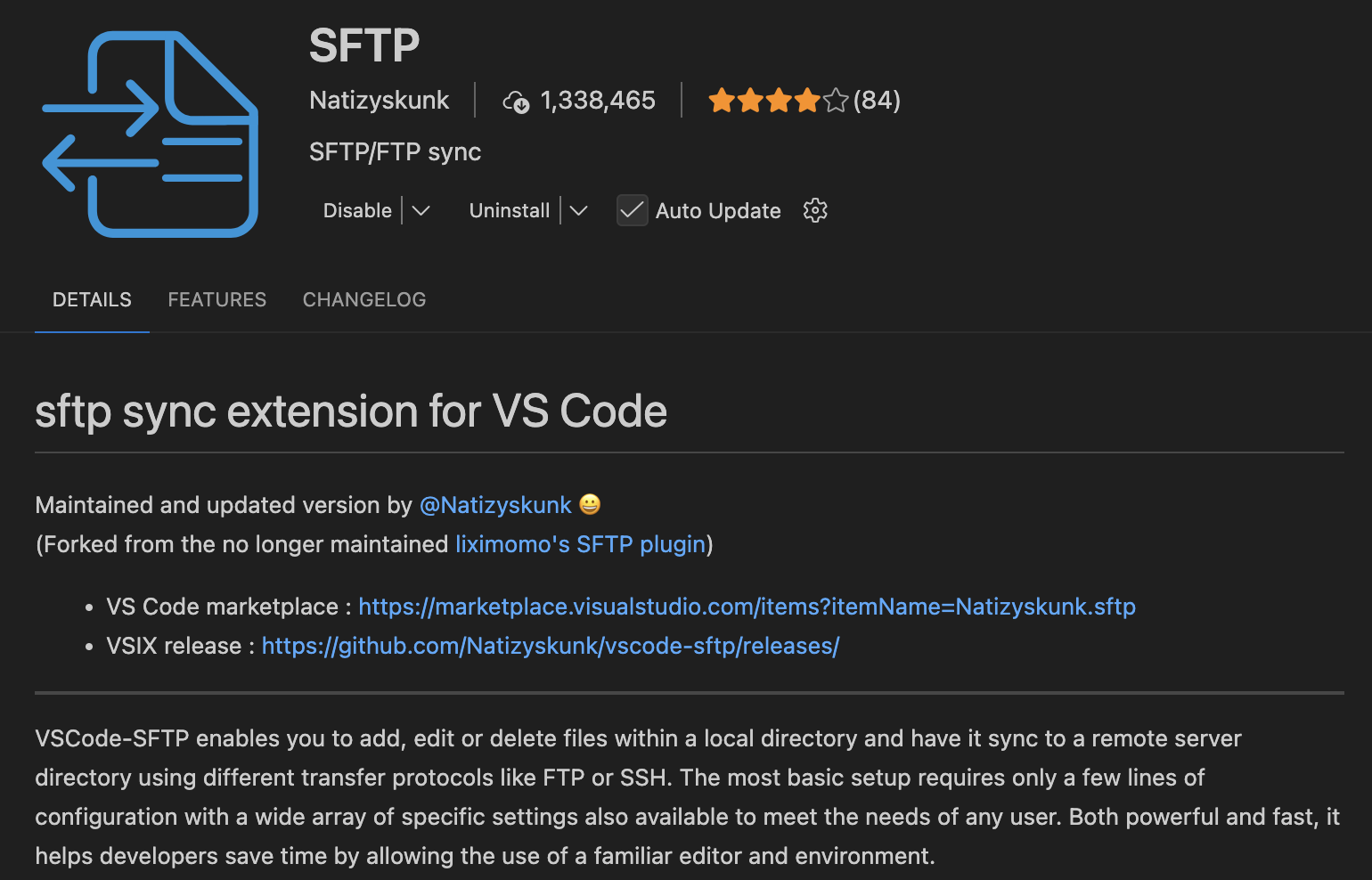
Open VS Code → Extensions → install “SFTP” by Natizyskunk.
Step 2 — Create Configuration
Open Command Palette using Ctrl/Cmd + Shift + P. Run: SFTP: Config. This creates .vscode/sftp.json.
Step 3 — Configure sftp.json
Include the following configuration in your .vscode/sftp.json:
Basic Configuration
json
{
  "name": "<connection_name>",
  "host": "xlogin.comp.nus.edu.sg",
  "protocol": "sftp",
  "port": 22,
  "username": "<your_username>",
  "password": "<your_password>",
  "remotePath": "<remote_project_root>",
  "uploadOnSave": true,
  "ignore": [
    ".vscode",
    ".git",
    ".DS_Store"
  ]
}
Advanced Configuration
json
{
  "name": "<connection_name>",
  "host": "xlogin.comp.nus.edu.sg",
  "protocol": "sftp",
  "port": 22,
  "username": "<your_username>",
  "remotePath": "<remote_project_root>",
  "uploadOnSave": true,
  "useTempFile": true,
  "openSsh": true,
  "privateKeyPath": "<your_private_key_path>",
  "downloadOnOpen": true,
  "concurrency": 4,
  "watcher": {
    "files": "**/*",
    "autoUpload": true,
    "autoDelete": false
  },
  "ignore": [
    ".vscode",
    ".git",
    ".DS_Store"
  ]
}
Step 4 — Connect
Run SFTP: List from the Command Palette to verify the connection.
Step 5 — Sync Options
- Upload: Use SFTP: Upload Active File.
- Download: Use SFTP: Download Active File.
Step 6 — Recommended Initial Sync
Run SFTP: Sync Local -> Remote to ensure all files are synchronized.